Reference
Characters
Use character prep as a cast sheet. Review generated facts in manuscript context, then add the voice choices and notes that need to stay consistent.
Add the decisions PrepBoss cannot infer
Generated character details help you review faster, but the final performance decisions come from you or your collaborators.
- Add custom notes to characters when required
- Record/upload voice samples for character voices and name pronunciation
Review the cast sheet
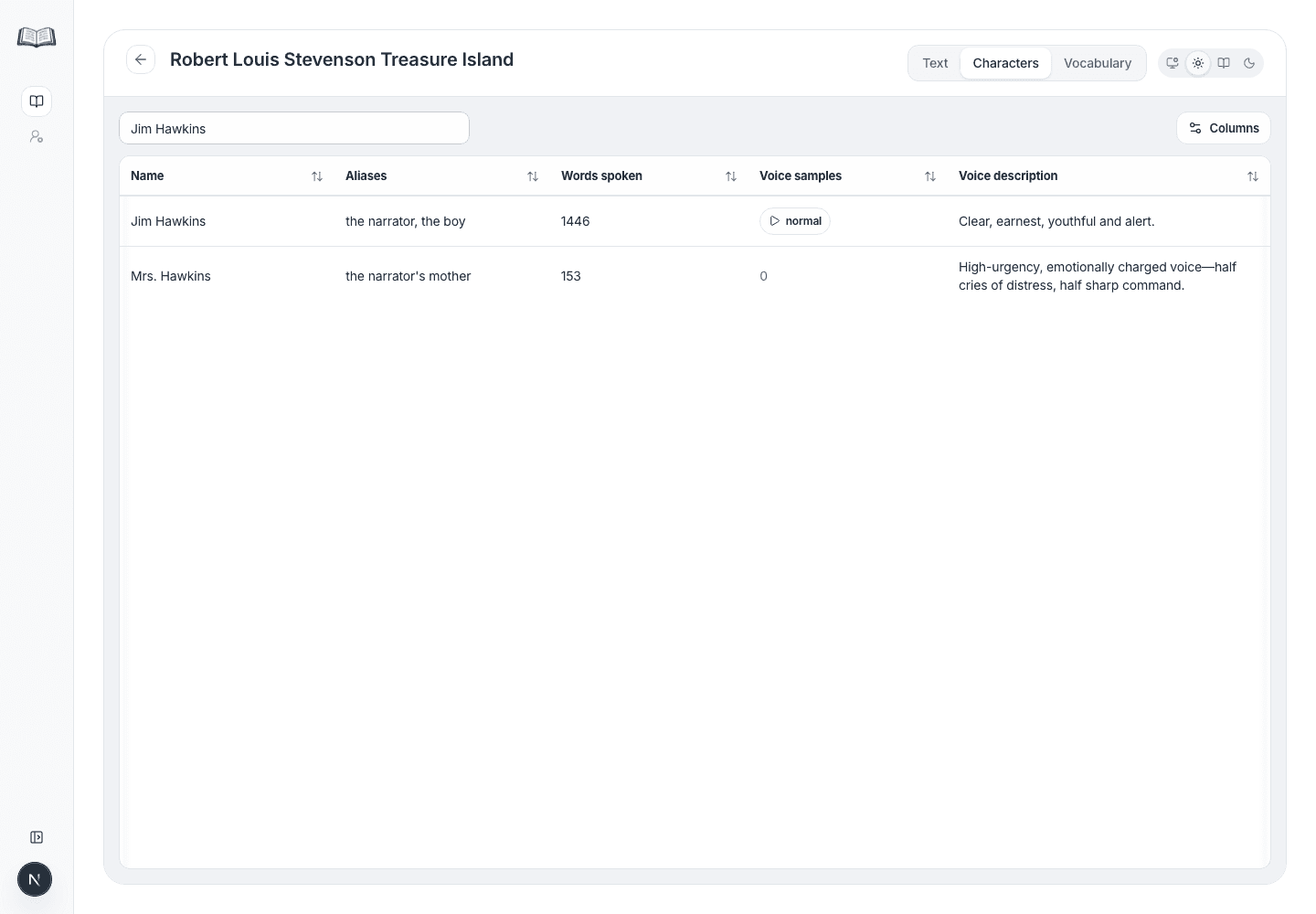
The Characters tab is best for scanning the whole cast after you have done an initial script pass.
- 1Open the Characters tab.
- 2Sort by Words spoken to find the characters most likely to affect recording consistency.
- 3Use Search visible rows to filter by name, alias, voice description, or other visible table text.
- 4Click Columns when you want to hide fields that are not relevant to the current review pass.
Attach voice samples in two clicks
Voice samples are user-created references. Add them when a voice, accent, name, invented word, or pickup note needs to be heard rather than described.
- 1Open the character from the Text tab reference panel.
- 2Click Add voice sample or the microphone button on the character's voice sample field.
- 3Enter a short tag such as calm, angry, name, or pickup.
- 4Record from the microphone or upload an audio file.