Prepare
Script review
Use the Text tab as the main review surface. It keeps the manuscript, dialogue highlights, character references, vocabulary, and unresolved questions in one workspace.
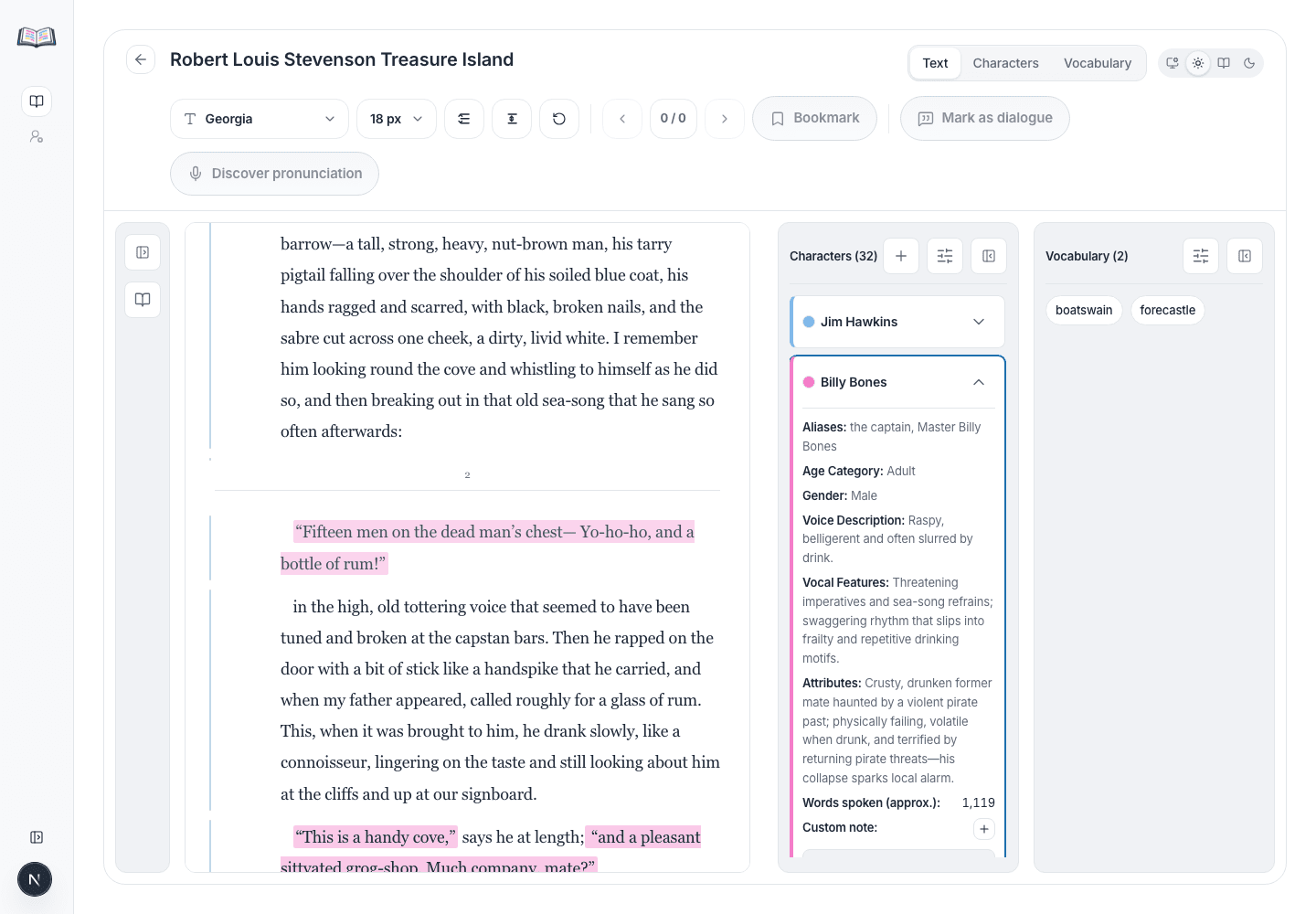
Primary book view
You can see the book text with highlighted dialogues, character details and vocabulary.
- 1All the panels are foldable, so you can leave more space for the text
- 2You can adjust the font, text size, spacing etc. for more comfortable reading
- 3Choose the color scheme (light, soft, dark) that is most comfortable for you
- 4Use the font, size, line spacing, paragraph gap, and theme controls to make the script comfortable for review.
Check dialogue against the speaker card
PrepBoss highlights detected dialogue and assigns a speaker. Review it in the text before treating it as final.
- 1Left-click a highlighted dialogue line to focus and expand the matching character card.
- 2On the character card you will see the character name, aliases, attributes, voice features etc.
Reassign dialogue
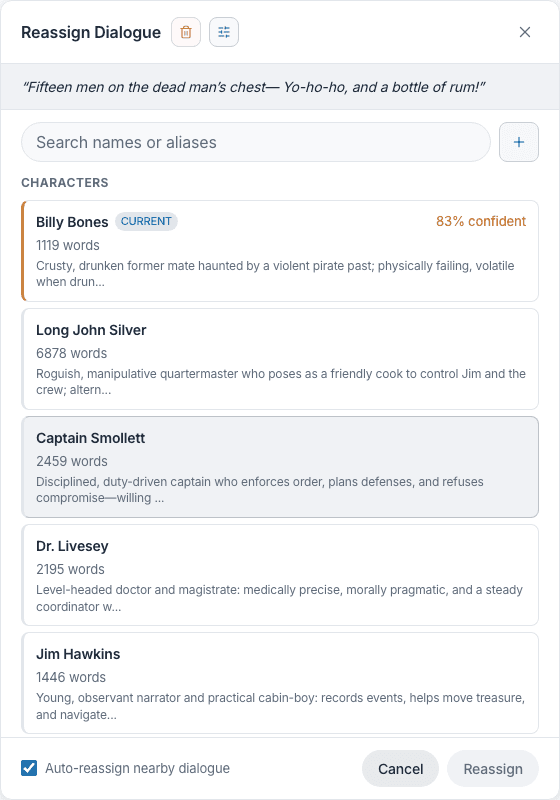
When a highlighted line belongs to the wrong speaker, correct it from the passage instead of searching through the character table.
- 1Right-click the highlighted dialogue line in the manuscript, or press and hold an unselected dialogue on a phone or tablet without moving your finger. Clear any existing text selection first. You will see the most likely speakers with confidence levels.
- 2Usually the correct speaker is already near the top of the list.
- 3Click the character who should own the line.
- 4Leave 'Auto-reassign nearby dialogue' when you want the app to auto-reassign a few following dialogues because you selection affects them.
- 5Click 'Reassign'
Mark dialogue as narration
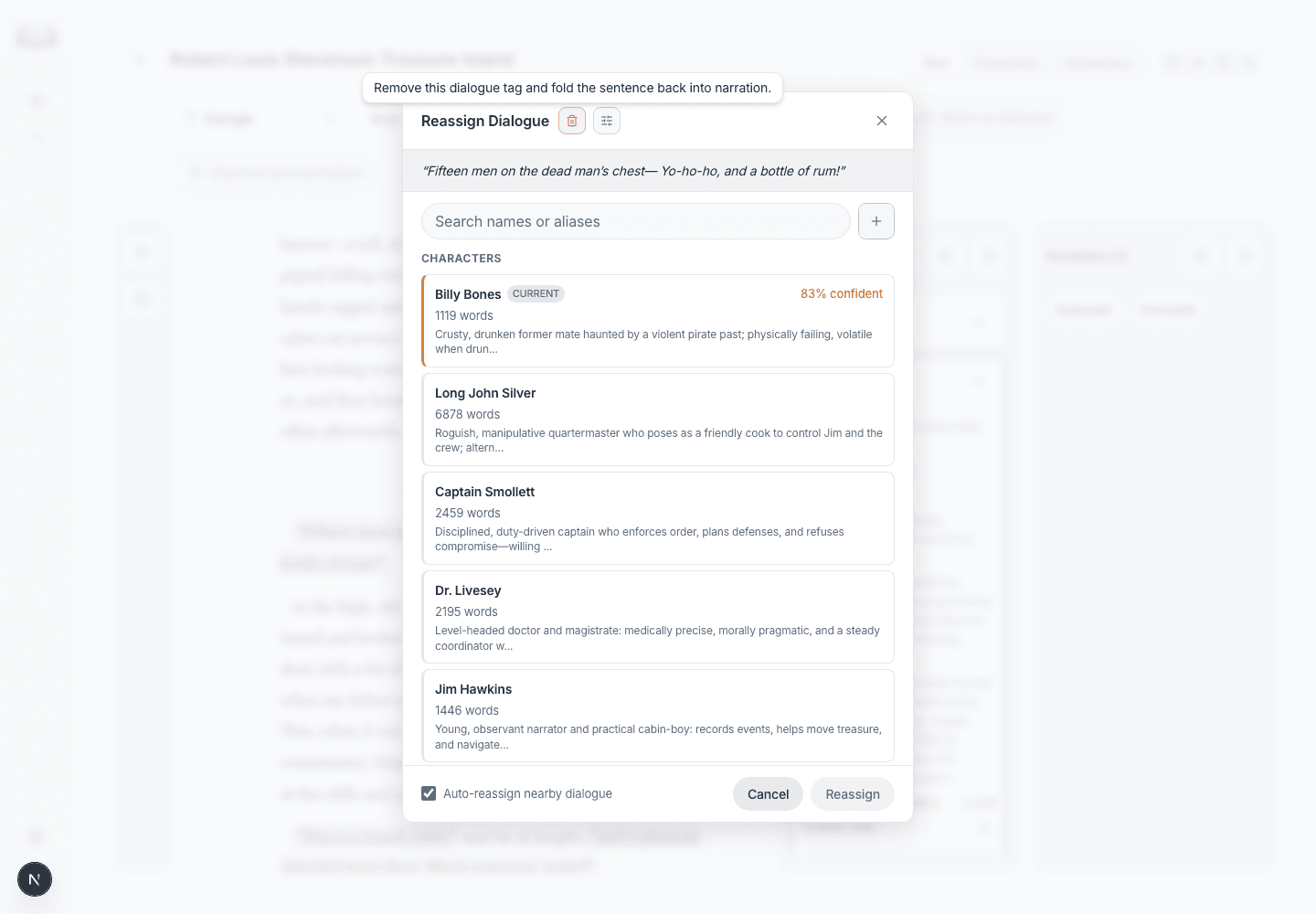
In rare cases, Prepboss may incorrectly mark a part of narration as dialogue (e.g. when it's quoted and looks like a dialogue)
- 1Right-click the highlighted dialogue line.
- 2Click the trash button in the Reassign Dialogue header.
Mark missed dialogues
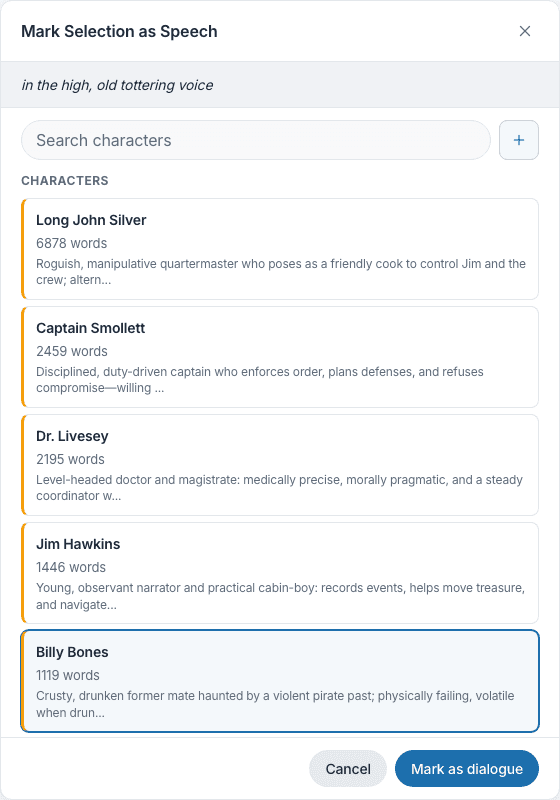
In rare cases, Prepboss may miss a dialogue and keep it as narration.
- 1Drag-select the exact words that should become dialogue.
- 2Click Mark as dialogue in the toolbar.
- 3Select the speaker
- 4Click 'Mark as dialogue'
Place inline delivery cues
Delivery cues are manuscript markups you place at the exact point where a performance note applies.
- 1Open Delivery cues from the text-markup toolbar.
- 2Choose a cue such as Whispering, Shouting, or Hesitant.
- 3Click or tap the exact position in dialogue or narration where the cue belongs.
- 4Select a placed cue to remove it, or pin frequently used cues in the picker.
Add/remove bookmarks and text notes
- 1Add a bookmark by clicking on a vertical line on the left, or by selecting a part of text.
- 2Add a note to the bookmark if needed
- 3Move between bookmarks via the arrow buttons on top
- 4Remove the bookmark by clicking 'trash' icon
PrepBoss shows short chapter summaries alongside the manuscript.
- 1Find chapter markers to the left of the text.
- 2Open a marker to read its short chapter summary.
- 3Jump to the previous or next chapter.